Building lasting personal discipline is tough when you only rely on motivation. Without a visual record, it is easy to miss three or four days in a row without realizing your habits are slipping.
A weekly habit tracker provides immediate visual accountability. In this practical tutorial, we build a Daily Habit Tracker & Streak Dashboard in Microsoft Excel. You will learn how to log daily routines with checkmarks, calculate automatic completion percentages with COUNTIF, and maintain an executive habit cockpit.
Habit Matrix Layout and Tracking Grid
An effective habit tracker is clean and easy to update every morning or evening. Our single-sheet tracker structures daily routines across a rolling 7-day cycle.
Rows 12 through 19 track 8 core personal habits: deep work coding, cardio exercise, technical reading, hydration, sugar control, stretching, screen shutdown, and weekly journaling. Columns C through I record daily completion, while column J calculates your weekly percentage and column K tracks active streaks.
Review the tracking ledger schema below before logging your daily routines:
| Col | Field Name | Type | Format | Operational Role |
|---|---|---|---|---|
| B | Habit / Daily Discipline | Text | General | Specific measurable routine (Deep Work Coding, Hydration 3L). |
| C | Mon | Text (Symbol) | Center | Monday completion log (✔ for completed, · for rest day). |
| D | Tue | Text (Symbol) | Center | Tuesday completion log. |
| E | Wed | Text (Symbol) | Center | Wednesday completion log. |
| F | Thu | Text (Symbol) | Center | Thursday completion log. |
| G | Fri | Text (Symbol) | Center | Friday completion log. |
| H | Sat | Text (Symbol) | Center | Saturday completion log. |
| I | Sun | Text (Symbol) | Center | Sunday completion log. |
| J | Weekly % | Formula (Percentage) | 0.0% | 7-day habit adherence ratio: =COUNTIF(C12:I12, "✔")/7. |
| K | Streak Status | Text | General | Milestone category badge (practical skill, Consistent, Needs Focus). |
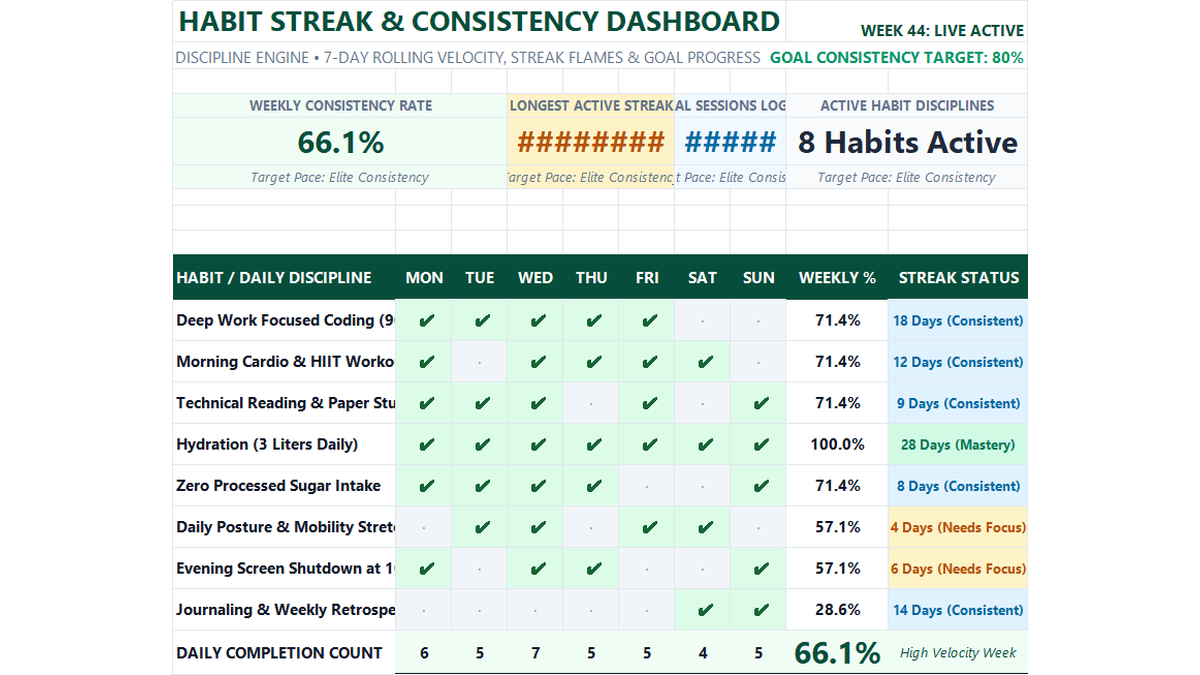
Workbook Blueprint: The Daily Habit Tracker model displaying top KPI cards, 7-day completion matrix, and active streak milestones.
Now that the 7-day grid is laid out, let us configure the automated completion formula and visual checkmark styling.
Setting Up Consistency Formulas, Checkmark Rules, and Streak Badges
Setting up this model involves three concrete steps: counting checkmarks with a COUNTIF division formula, applying soft green shading to logged habits, and reviewing the executive dashboard.
Follow each step below:
1Step 1: Calculate Weekly Completion Rate with COUNTIF
To measure your weekly adherence for each habit, count how many days contain a checkmark and divide by 7.
In cell J12, enter the consistency formula: =COUNTIF(C12:I12, "✔") / 7.
For Deep Work Coding, 5 checkmarks are logged between Monday and Friday (with rest days on the weekend). Cell J12 evaluates to 71.4%.
Copy this formula down through row 19. Notice that Daily Hydration (row 15) scores a perfect 100.0% (7/7 days), while Journaling (row 19) logs 28.6%.
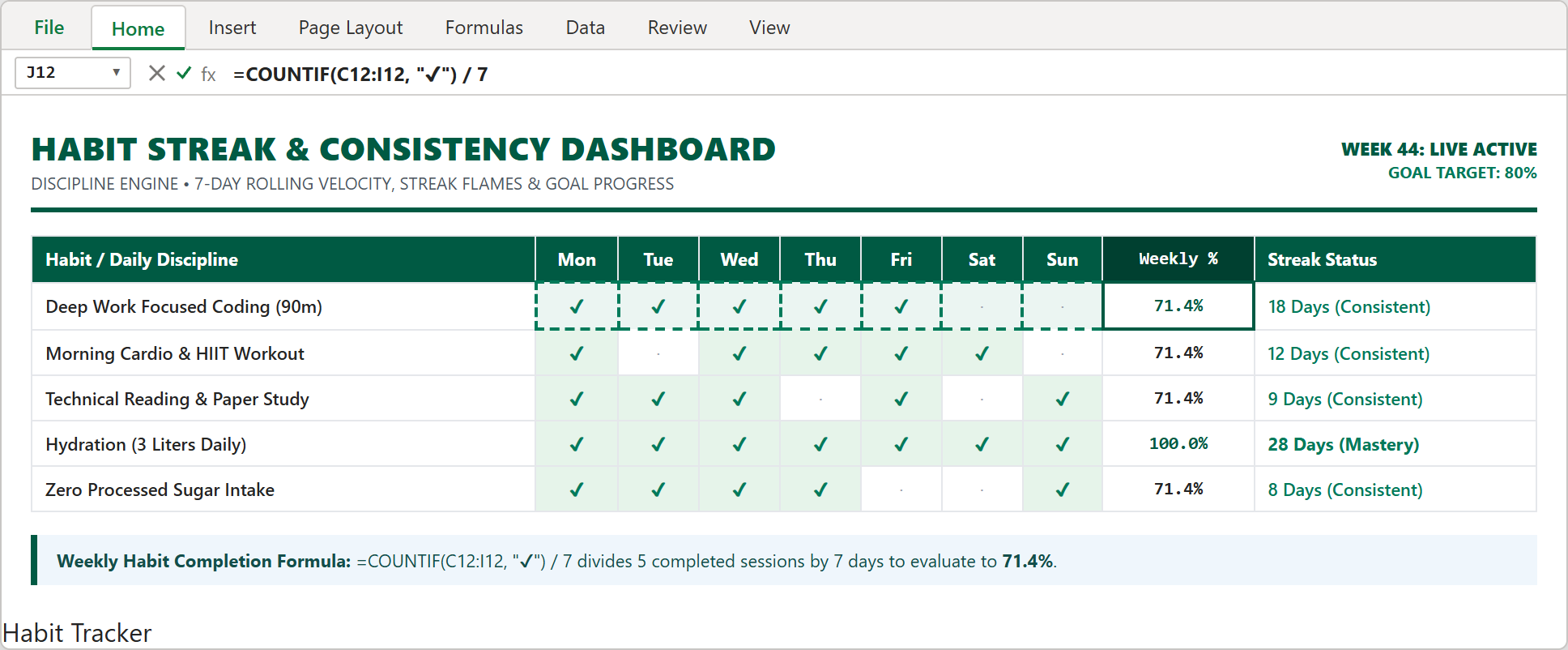
Step 1: Formula bar showing =COUNTIF(C12:I12, "✔")/7 calculating weekly habit adherence in cell J12.
2Step 2: Add Conditional Formatting for Completed Checkmarks
To make completed days immediately visible, highlight checkmark cells in soft green.
Select the 7-day tracking range C12:I19, go to Home > Conditional Formatting > New Rule, and choose Format only cells that contain.
Set the condition to Specific Text containing ✔. Under Format, select light green fill (#E6F4EA) with dark green bold text (#007A5A).
Click OK. Whenever you type a checkmark symbol, the cell turns green automatically, creating a rewarding visual progress board.
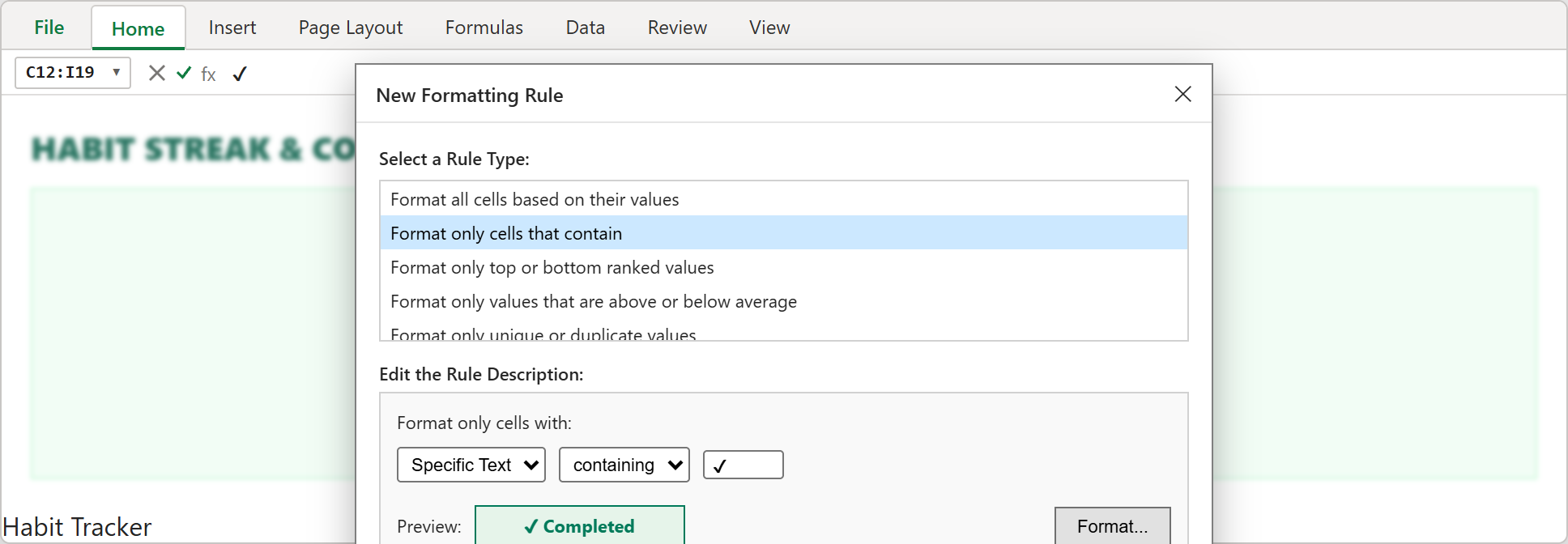
Step 2: Excel Conditional Formatting dialog configuring soft green highlights for logged checkmarks.
3Step 3: Executive Habit Streak & Consistency Dashboard
Now examine the completed executive habit dashboard view.
Top KPI cards summarize your weekly momentum: Weekly Consistency Rate (66.1%), Longest Active Streak (28 Days) achieved on Daily Hydration, Total Sessions Logged (37 Logs), and Active Habit Disciplines (8 Habits).
Row 20 tallies your daily volume, showing peak discipline on Wednesday with 7 of 8 habits completed.
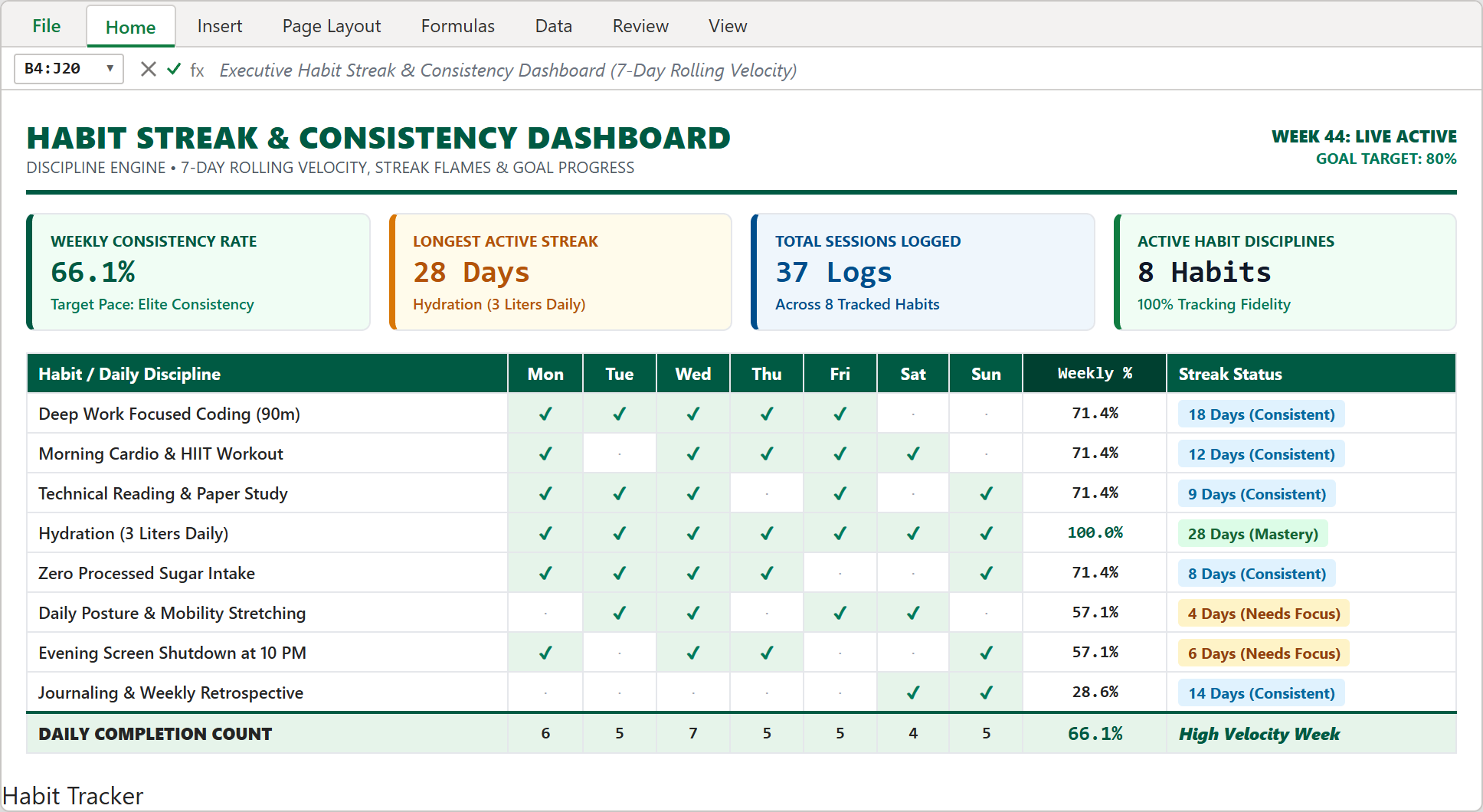
Step 3: Completed habit dashboard view showing top momentum scorecards, 7-day completion matrix, and active streak badges.
Habit Tracking Best Practices and Streak Guidelines
To build durable habits and avoid burning out, apply these three practical rules:
1. Never Miss Twice: Missing one day happens to everyone. Make sure you never miss two consecutive days on any primary habit.
2. Track No More Than 8 Habits: Trying to track 20 routines at once scatters your focus. Keep your tracker limited to 5 to 8 high-leverage habits.
3. Log at the Same Time Daily: Log your checkmarks every morning over coffee or every evening before bed to make tracking itself an automatic ritual.
Conclusion and Next Steps
You have built a clean Daily Habit Tracker & Streak Dashboard in Microsoft Excel. With automated completion formulas, visual checkmark highlights, and weekly momentum scorecards, staying consistent with your personal goals is simple.
Download the template below to plug in your own daily routines, or practice modifying formulas directly inside our interactive spreadsheet playground.

Spreadsheet educator and web developer passionate about hands-on interactive spreadsheet practice.
Related Practical Exercises
Explore more hands-on spreadsheet models with downloadable practice workbooks.
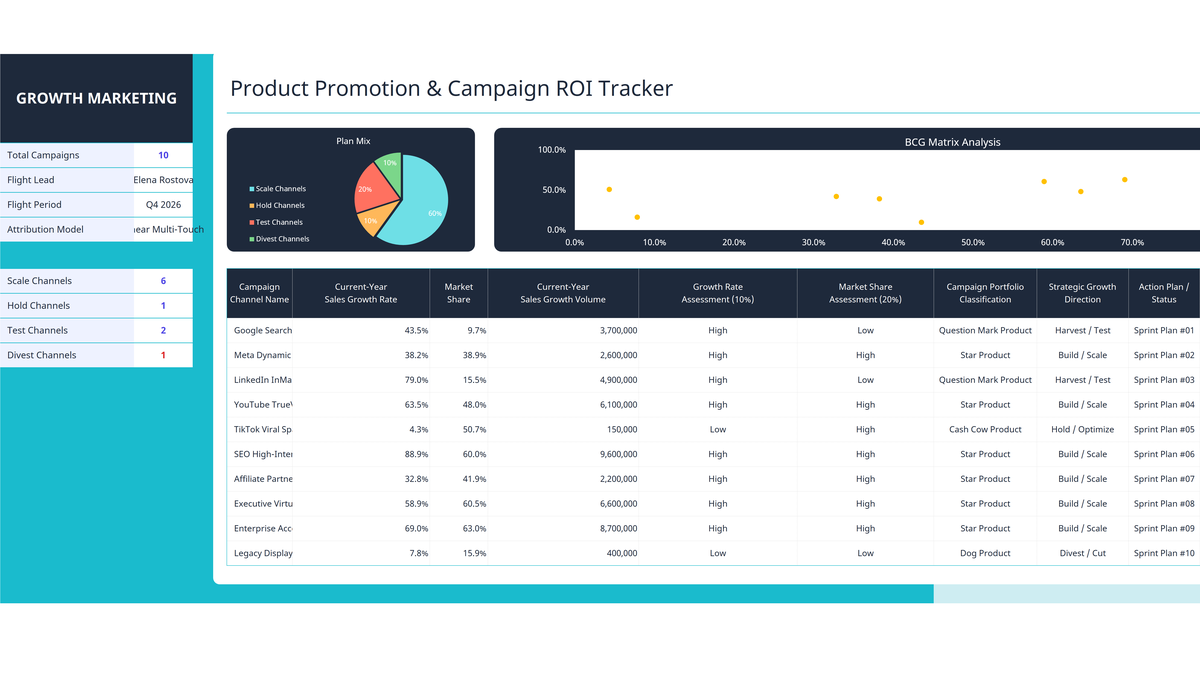 Sales
Marketing Campaign ROI Tracker Excel Template
Evaluate marketing channels, advertising returns, and campaign growth in Microsoft Excel. Build an executive campaign ROI tracker featuring growth rate percentage formatting, automated BCG matrix portfolio classification (Star, Cash Cow, Question Mark, Dog), and executive dashboard visualizations.
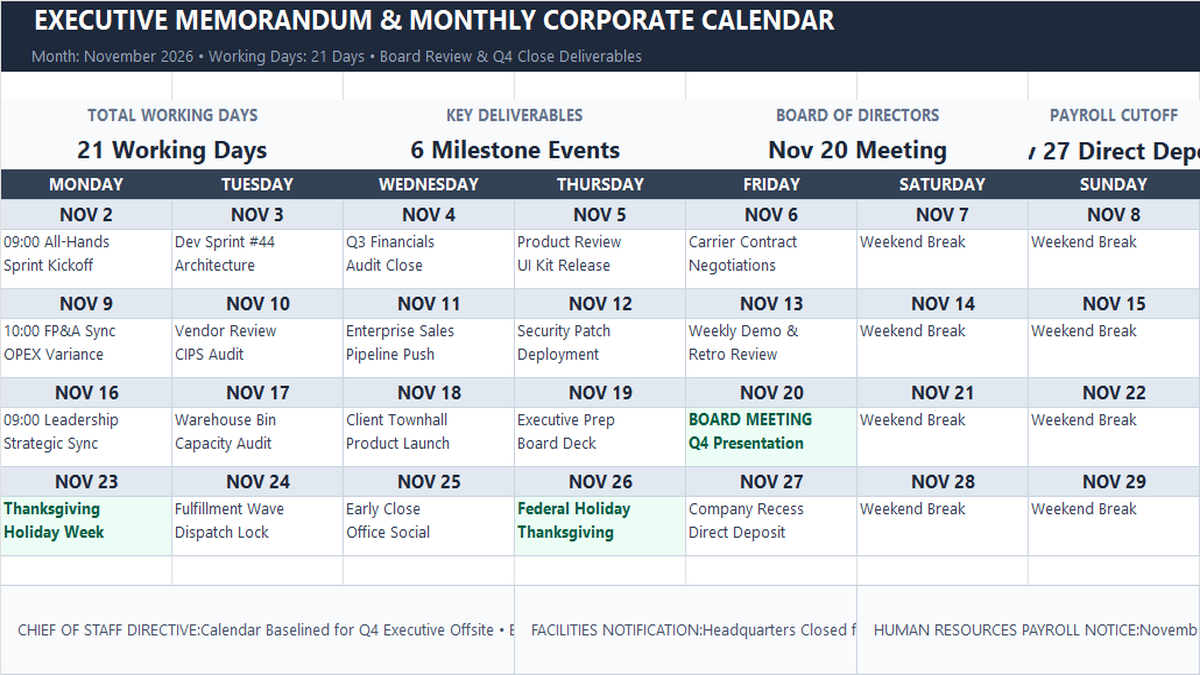 Productivity
Monthly Memo Calendar Excel Template
Learn how to construct a monthly executive memo calendar in Microsoft Excel featuring single-sheet architecture, working days rollups with NETWORKDAYS, milestone event highlights, and department directive memos.
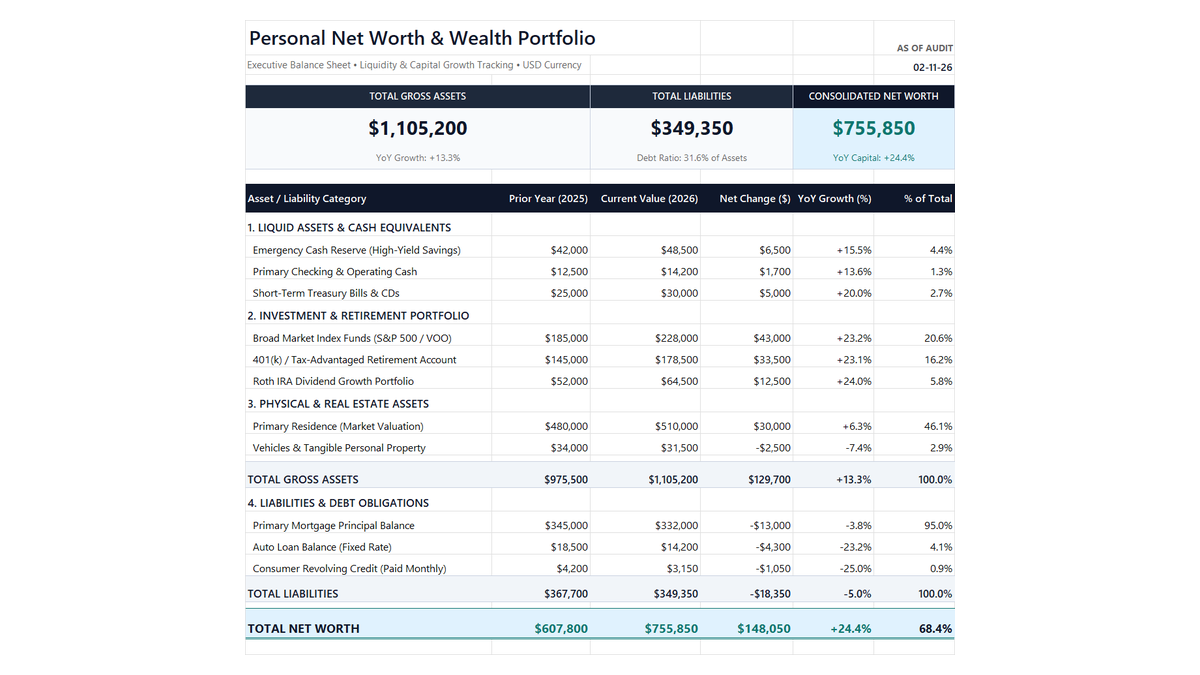 Productivity
Personal Net Worth Tracker Excel Template
Build a clean personal net worth tracker in Microsoft Excel to monitor liquid savings, retirement accounts, real estate equity, and debt paydown with automated balance sheet math.
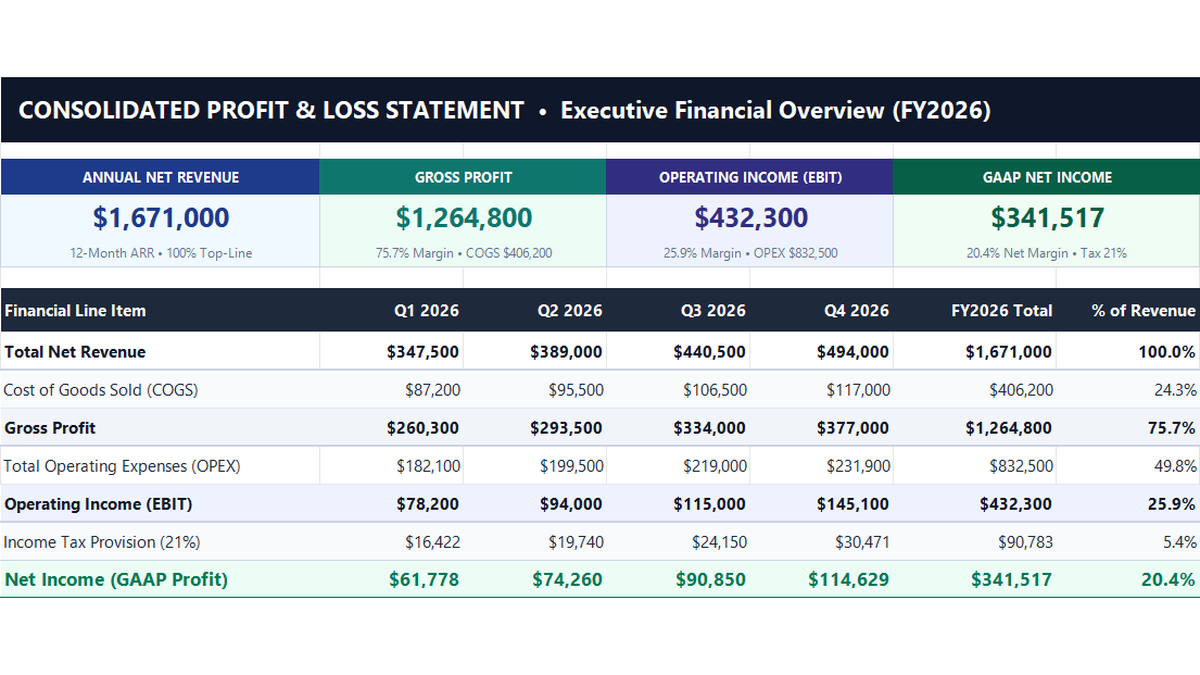 Finance
Profit and Loss Statement Excel Template
Build a standard 12-month corporate profit and loss statement in Microsoft Excel to track revenue lines, cost of goods sold, operating expenses, and net profit margins.
 Project Management
Project Budget Estimator Excel Template
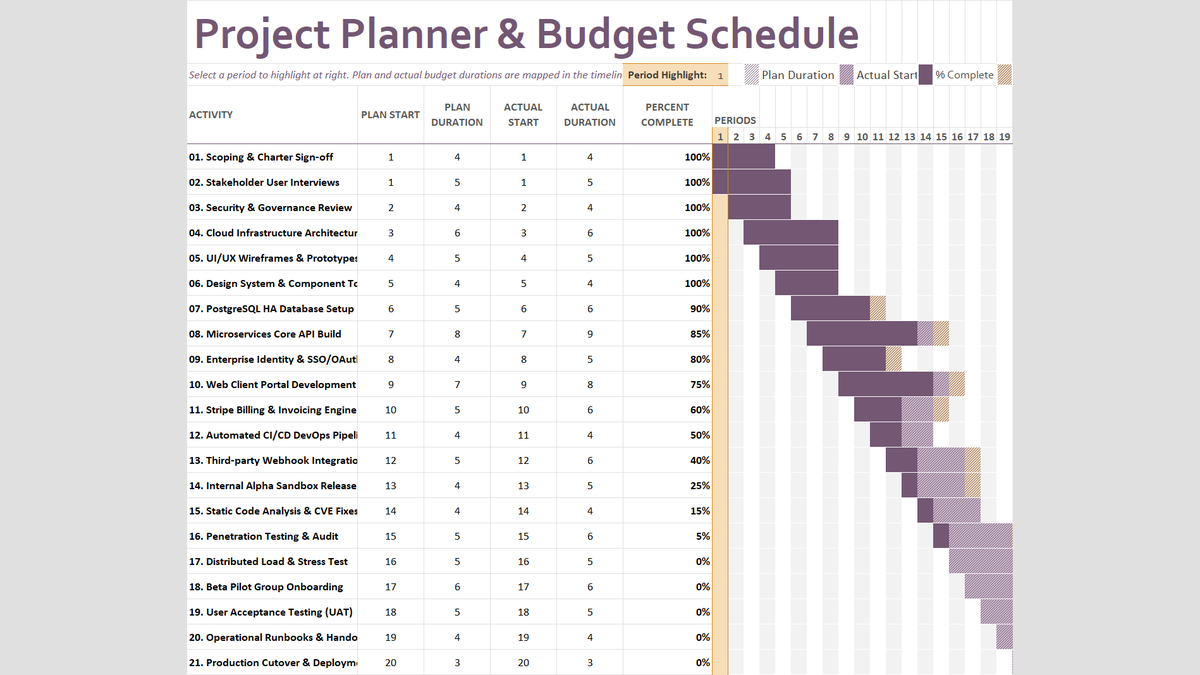
Build a practical project planner and budget schedule in Microsoft Excel to track planned versus actual durations, percent complete milestones, and dynamic timeline periods.
Discussion
Ask questions, share formula tips, or discuss alternative approaches with fellow spreadsheet builders.
Loading discussion...